
Auto Flow
This guide explains the Auto Flow execution model, the primary integration method for Promotions (formerly OptiPromo). It is designed for teams who want a streamlined, automated promotion experience -Optimove handles the full activation process on your behalf, so your system only needs to react once execution is complete.
When to Use Auto Flow
Choose Auto Flow when:
- You want a simple, automated promotion experience
- You don't need to apply custom filtering or business logic to the customer list
- You want to minimize the technical overhead of managing promotion execution steps
- You're comfortable with Optimove's standard validation and reward workflow
Need more flexibility? If your use case requires custom customer filtering, scrubbing, or control over execution timing, see the Advanced Control Flow guide.
Key Benefits
- Simple setup -Optimove manages the internal webhook configuration; contact your CSE to get started
- Fully automated execution -Optimove and Promotions handle customer targeting, reward calculation, and status updates automatically
- Hybrid campaign support -Works with both scheduled and triggered campaign types
- Minimal integration footprint -Your system only needs to handle the post-execution webhook and optional reward redemption
Your Responsibilities
Before the campaign runs, your team sets up the following in Optimove:
1. Create a Target Group
Define the audience for your campaign. This determines which customers are eligible for the promotion.
2. Create a Promotion
Configure the promotion with:
- Reward tiers and any additional custom properties
- Budget and audience cap limitations
- Optional: a customer attribute used to sort the target group for capping purposes
- Unique codes (if applicable): upload a CSV pool of codes and set the allocation method and default code, as described in Creating a Promotion with Unique Codes.
3. Create a Campaign
Set up the campaign with:
- Campaign type: scheduled or triggered
- Target group assignment
- Channel output -configure an Email (formerly OptiMail) template for email delivery
How It Works -Behind the Scenes
Once your campaign is executed, Optimove and Promotions automatically orchestrate the following steps. No action is required from your system - all post-execution steps below are optional.
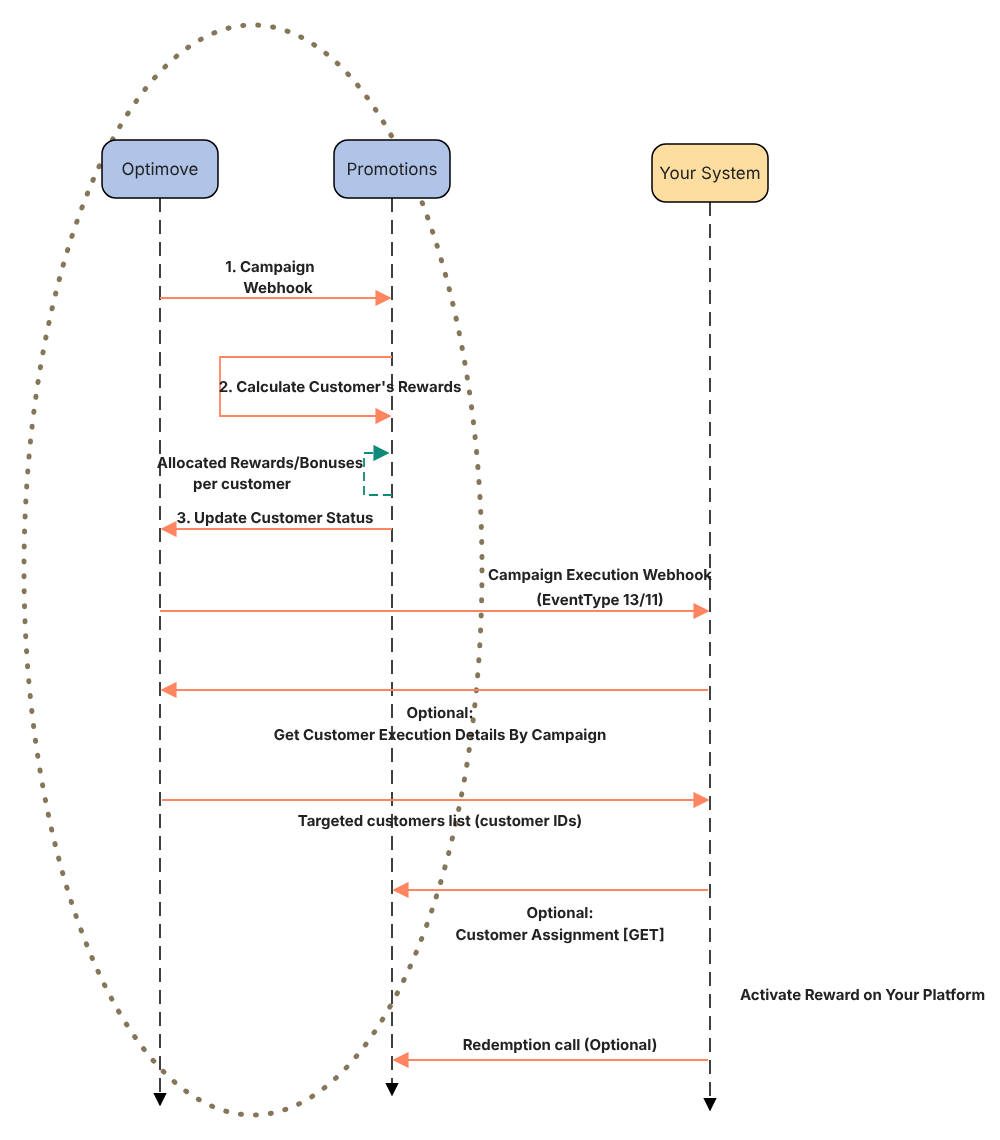
1. Campaign Webhook
What happens: Optimove sends a campaign webhook to Promotions to signal that the campaign has been executed.
Why it's important: This is the internal trigger that kicks off the fully automated execution process. No action is required from your system at this point.
2. Calculate Customer's Rewards
What happens: Promotions processes each targeted customer to determine their reward, evaluating:
- Eligibility based on promotion rules
- Budget and audience cap availability
- Reward tier calculation
Why it's important: This is where the core promotion engine runs. Promotions handles all validation and tier logic automatically, without any input from your system.
3. Allocate Rewards/Bonuses per Customer
What happens: Promotions allocates the calculated rewards and bonuses to each eligible customer.
Why it's important: This step finalises each customer's reward entitlement before the results are surfaced to your system.
4. Update Customer Status
What happens: Promotions sends an update back to Optimove to confirm customer status following reward allocation.
Why it's important: This keeps Optimove's campaign records accurate and ensures budget and audience cap counts are up to date before your system is notified.
5. Campaign Execution Webhook (EventType 13/11) (Optional)
What happens: Your system receives a campaign execution webhook notifying you that the campaign has completed and rewards have been allocated.
Why it's important: This is the signal for your system to begin any post-execution steps. Use the RegisterEventListener API with EventTypeID: 13 (scheduled) or EventTypeID: 11 (triggered) to register for this notification.
Post-Execution Steps -Your System
Fetch Reward Allocations (Optional)
What happens: After the Campaign Execution Webhook, your system can retrieve the full reward allocation data in two calls.
1. Get the targeted customers. Your system makes an API call to Optimove, Get Customer Execution Details By Campaign (GetCustomerExecutionDetailsByCampaign), to retrieve the full list of customers targeted by the campaign, including their customer IDs.
2. Call the Customer Assignment endpoint. Using the customer IDs from step 1, your system calls the Customer Assignment endpoint in the Promotions API to get the full reward allocation data.
What you'll receive:
- The list of customers who received the promotion
- Assignment status per customer
- Reward details
- Additional promotion properties
See the Customer Assignment endpoint in the API Reference for request and response details.
Activate Reward on Your Platform
§What happens: Using the reward allocation data, your system activates the reward for each eligible customer on your platform.
Why it's important: This is the moment the customer actually receives their reward -whether that's crediting a bonus, applying a discount, or delivering a unique code.
Call the Redemption Endpoint (Optional)
What happens: Send a reward activation report to Promotions so redemption can be tracked. This can be reported in two ways:
- Triggered -Send an individual API request to Promotions for each reward activation
- Scheduled -Send a batch of reward activations at a set interval
See the Redemption endpoint for details.
API Reference
Your system will need the following calls to implement this flow.
To learn about the flow that gives your system full control over the validation process, see the Advanced Control Flow guide.
Updated about 12 hours ago