
Loyalty Multibrand Support
Multibrand support lets you run more than one Loyalty program (brand) under one Optimove tenant. If you run a single program, you don't need anything on this page.
What a Brand Is
Each brand is a separate Loyalty program. Missions, leaderboards, tournaments, levels, rewards, store, widget theme, API keys and webhooks all belong to one brand. Brands do not share configuration.
Player data is separated the same way: the same playerId in two brands is two separate players, with separate progress and rewards.
Every tenant has a default brand. It is named after your tenant ID (e.g. 1234) and cannot be renamed.
Enabling Multibrand
Multibrand is enabled by Optimove. Contact your Customer Success Manager (CSM) to turn it on for your tenant. Once it is enabled, the Loyalty configurator shows:
- A brand selector on the right of the top bar.
- Brand Configuration under Settings.
Brand Name vs. Brand ID
| Identifier | What it is | Where you use it |
|---|---|---|
| Brand Name | The name set in Settings → Brand Configuration. Unique per tenant. | Event context value, hosted widget URL, brand lookup endpoint |
Brand ID (brandId) | The ID of the brand, returned by the brand lookup endpoint | Store items and the other endpoints that take brandId (e.g. GET /api/missions/brand/{brandId}/player/{playerId}) |
Case Sensitivity
| Where | Case-sensitive? | Example |
|---|---|---|
Event context value | Yes — exact match, character for character, including spaces | example brand does not match a brand named Example Brand |
| Brand lookup endpoint | No | /name/examplebrand and /name/ExampleBrand return the same brand |
| Hosted widget URL | No | /brand/examplebrand/ and /brand/ExampleBrand/ open the same brand |
Two brands in one tenant can't differ only by case, so the case-insensitive lookup and widget URL always resolve to one brand.
Setting Up Multibrand
Follow these steps in orderSend the brand key on all events first, and only then save the brand event parameter. Doing it the other way round silently stops all progress for events without the key, including default brand campaigns.
-
Choose your brand names. A brand name must be the exact value your events will carry. Event matching is case-sensitive, and spaces are not trimmed. The default brand already exists and is named after your tenant ID — decide which program lives in it.
-
Choose the brand event parameter. This is the key in the event's
contextobject that will hold the brand name (e.g.,ootb_brandname). You'll enter it later in the Brand event parameter field in Settings → Brand Configuration. Don't save it yet.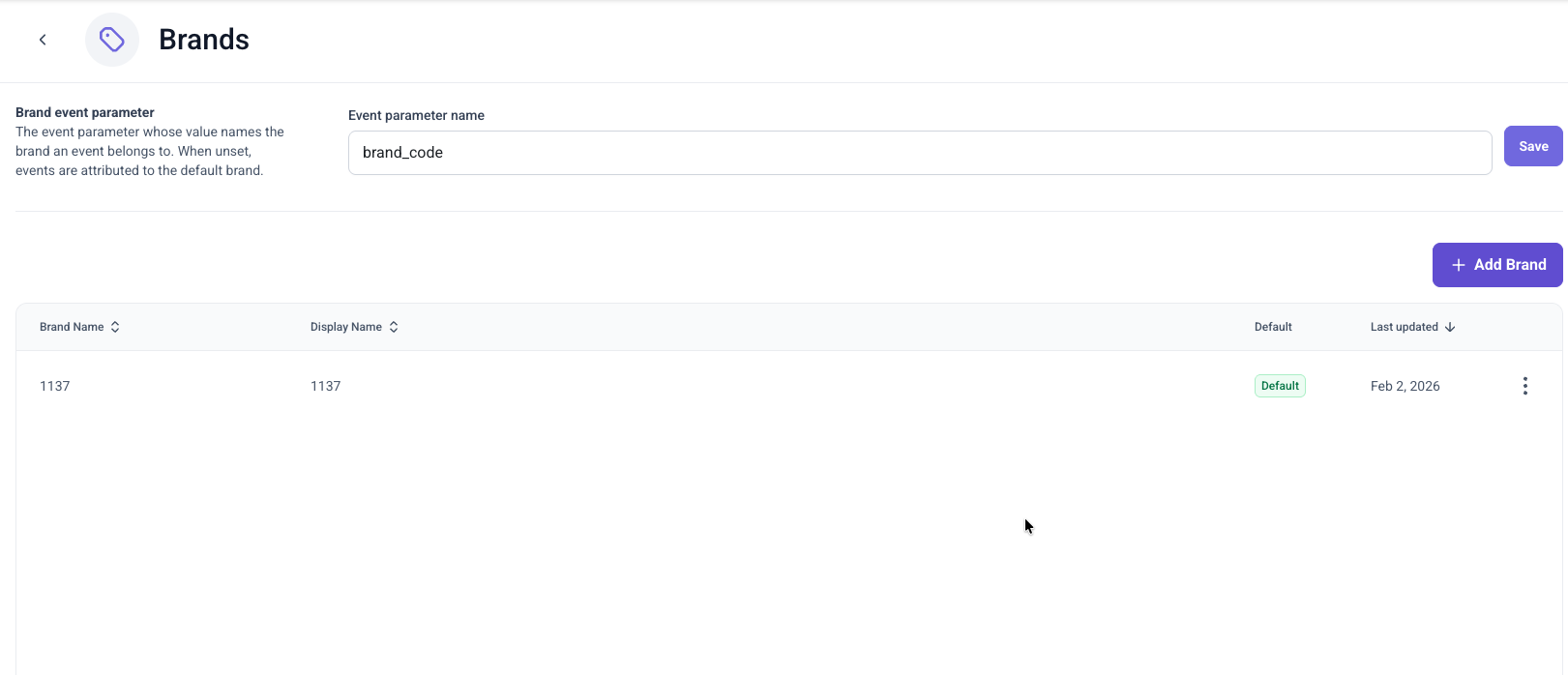
-
Create the brands. In Settings → Brand Configuration, click Add Brand.
- Name: 1–255 characters, unique in the tenant (case-insensitive), no
/ ? # % \or control characters. - Display name is optional and defaults to the name. It must also be unique within the tenant (case-insensitive).
- Brands cannot be deleted. Renaming a brand breaks event matching and widget URLs until you update both.
- Name: 1–255 characters, unique in the tenant (case-insensitive), no
-
Send the brand key on every event. See Sending the Brand on Every Event. Until the parameter is saved, all events still go to the default brand, so this step is safe.
-
Save the brand event parameter. In Settings → Brand Configuration → Brand event parameter, enter the key and click Save. It takes up to 15 minutes to apply to events.
-
Set up each brand in the configurator: missions, leaderboards, levels, rewards, store, widget theme, API keys and webhooks.
-
Connect the widget for each brand. See Opening the Widget for a Brand.
Switching Between Brands in the Configurator
- In the top bar, click the brand button on the right. It shows the display name of the selected brand.
- In the list, click the brand you want.
The configurator shows "Switched to {brand} brand" and reloads everything for that brand. Everything you see, create or change belongs to the selected brand only.
If the page has unsaved changes, the configurator first asks Switch brand? — Switch Brand discards the changes and switches; Cancel keeps you on the page.
Getting the Brand ID
Use the public brand lookup endpoint. No token is needed.
Endpoint
GET https://opti-ls-api-{region}.optimove.net/api/brands/tenant/{tenantId}/name/{brandName}
{region}iseuorus, in lowercase.{brandName}is case-insensitive here.- Returns the brand, including its
id— thatidis thebrandIdfor store items and the other brand-scoped endpoints. - Returns
404if there is no brand with that name. It never falls back to the default brand.
Example
Request (EU region, tenant 1234, default brand):
GET https://opti-ls-api-eu.optimove.net/api/brands/tenant/1234/name/1234Response:
{
  "id": "3f2a9c1e-7b4d-4e8a-9c61-2d5f8e0a1b23",
  "tenantId": 1234,
  "name": "1234",
  "displayName": "1234",
  "isDefault": true,
  "createdAt": "2026-09-22T09:46:20.409Z",
  "updatedAt": "2026-09-22T09:46:20.409Z"
}
Key Response Fields:
id: ThebrandIdto use in the other endpoints.tenantId: Your tenant ID.name: The Brand Name.displayName: The name shown in the configurator. Defaults to the Brand Name.isDefault:truefor the default brand,falsefor all other brands.createdAt/updatedAt: When the brand was created and last updated (ISO 8601, UTC).
If the tenant has no brand with that name, the endpoint returns 404:
{
  "error": "Not Found",
  "message": "Brand \"SecondBrand\" not found for tenant 1234",
  "statusCode": 404
}
To resolve only the default brand, see the Default Brand for Tenant reference.
Sending the Brand on Every Event
The brand event parameter (Settings → Brand Configuration) is one setting per tenant. It names the key in the event's context object that holds the brand. The value of that key must be the Brand Name, and it is case-sensitive. It decides which brand's missions, leaderboards, tournaments and levels the event can progress.
Example, with the brand event parameter set to ootb_brandname:
{
  "context": {
    "ootb_brandname": "casino-it",
    "amount": 25
  }
}Do not send
ls_brandidorls_brandname. Loyalty sets the brand on each event itself.
Which Brand an Event Goes To
| Brand event parameter | Event context | Single-brand tenant | Multi-brand tenant |
|---|---|---|---|
| Not set | Anything | Default brand | Unassigned — counts for no brand, the default brand included |
| Set | Key matches a Brand Name | That brand | That brand |
| Set | Key missing, null or empty, or value matches no brand | Default brand | Unassigned — counts for no brand, the default brand included |
What Unassigned meansThe event is accepted without an error, but no mission, leaderboard, tournament or level progresses from it in any brand, and it is not retried. This applies to multi-brand tenants only — on a single-brand tenant, events with a missing or unrecognised brand value are still attributed to the default brand. If you have multiple brands and events are sent without the key, or with a brand name that doesn't exist (for example a typo or wrong case) after the parameter is saved, players silently stop earning progress.
Opening the Widget for a Brand
The hosted widget opens the default brand unless the URL names a brand:
{widgetBaseUrl}/{tenantId}/brand/{brandName}/{playerId}- Use the full URL, including
https://. - The path segment is
/brand/, not/brands/. - The URL uses the Brand Name, not the Brand ID. If you rename a brand, update the URL.
- The Brand Name in the URL is not case-sensitive.
- Without
/brand/{brandName}, the URL opens the default brand.
Example (EU region, tenant 1234, brand casino-it, player 98765):
https://opti-ls-widget-eu.optimove.net/1234/brand/casino-it/98765Fullscreen Overlay for Another Brand (Web SDK)
Pass the brand URL to openWidget the same way as the default brand URL.
// Default brand
optimoveSDK.API.gamify.openWidget(
  "https://opti-ls-widget-eu.optimove.net/1234/98765",
  undefined
);

// Another brand - by Brand Name
optimoveSDK.API.gamify.openWidget(
  "https://opti-ls-widget-eu.optimove.net/1234/brand/casino-it/98765",
  undefined
);
For the full overlay options, see the Gamify Loyalty Widget SDK guide.
Widget Token and Custom Widget UI
- Widget token: API keys belong to one brand. Create them in the configurator while that brand is selected.
- Custom widget UI: get the
brandIdwith the brand lookup endpoint, then call the brand-scoped endpoints with it.- For the full endpoint flow, see the Custom Widget UI Integration Guide.
Verifying Your Setup
- In Settings → Brand Configuration, check that every brand exists with the exact name your events send, and that the brand event parameter is the key you chose.
- Send one test event per brand, with the brand key set to that brand's exact name. Check that progress appears only in that brand's widget.
- Send a test event with the key left out, and one with a brand name that doesn't exist. Neither should progress anything in any brand. If your live events behave like this, they are missing the key or carry a wrong brand name.
Updated 20 days ago