
Global Flow
The Global Promotion flow connects Optimove to your external promotion system (a bonus engine, loyalty platform or coupon system) through the Optimove APIs. Once it's set up, Optimove decides which customers should get which promotion and when. Your promotion system activates that promotion for each customer, then reports each activation back to Optimove so redemptions can be tracked.
The integration supports both scheduled campaigns (target groups run on a set date) and triggered campaigns (real-time, fired by customer behavior).
When to Use Global Flow
Use this integration when:
- Promotions such as bonuses, free spins, discounts or loyalty points are granted and managed in a system outside Optimove.
- You want campaign targeting in Optimove to automatically decide who receives a promotion.
- You run scheduled campaigns where a promotion has to be valid for a set eligibility window, such as the campaign duration.
- You run triggered campaigns where a promotion has to reach a customer in real time, the moment they meet the trigger criteria.
- You want to stop manual exports, file uploads or hand-offs between your CRM and promotions teams.
Key Benefits
- Automated delivery: Promotions are activated in your system as soon as Optimove runs a campaign, with no manual steps.
- Precise targeting: Optimove's segmentation, target groups and control groups decide who is eligible.
- Real-time engagement: Triggered campaigns activate promotions at the moment of customer intent.
- One promotion catalog: Promotions stay in sync between Optimove and your promotion system, so marketers only pick valid promotions.
- Redemption tracking: Each activation is reported back to Optimove, so you can see which promotions were actually redeemed.
How It Works
Scheduled Campaigns
- Register a listener: Deploy a service, then call RegisterEventListener for EventTypeID 13. Optimove will notify the service when a campaign is ready to run.
- Synchronize promotions: Keep the promotion catalog current with these calls:
- Create several simple promotions in one call (oneClickBatch) creates a global promo code and an active promotion for each item in the request. It takes up to 150 items per request, and every code in a request must be unique.
- Archive an existing promotion removes an active or draft promotion by its promotionId. Archiving is permanent.
for Active promotions need to Deactivate it before archiving
- Receive the campaign notification: When a campaign is prepared, Optimove calls your listener with the Campaign ID.
- Activate promotions:
- Call GetCampaignDetails to get the campaign's duration and lead time.
- Call GetCustomerExecutionDetailsByCampaign to get the customer IDs and their assigned promo codes.
- Update your promotion system so each customer is eligible for the matching window.
- Report redemptions: After rewards are activated on your platform, send a reward activation report to the Redemption endpoint so redemption can be tracked. For scheduled campaigns, send the activations in batches at a set interval.

Triggered Campaigns
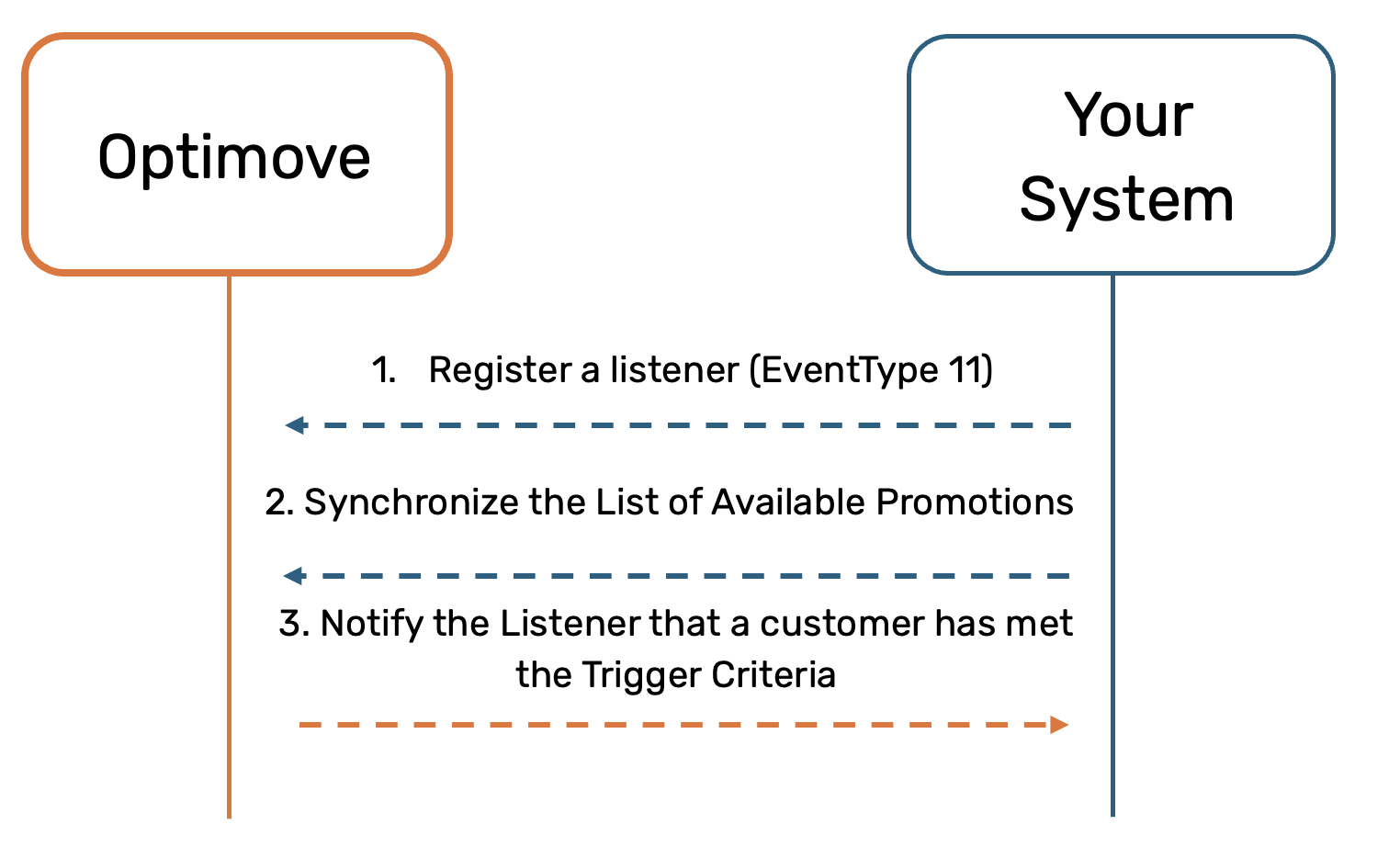
- Register a listener: Call RegisterEventListener (Triggers) with EventTypeID 11 to get real-time notifications when customers meet trigger criteria.
- Synchronize promotions: Use the same calls as scheduled campaigns: oneClickBatch to create promotions and Archive an existing promotion to remove them.
- Receive the trigger notification: When a trigger fires, Optimove sends an HTTP request with the customer and promotion details.
- Activate the promotion: Turn on the promotion in your system for that customer.
- Report redemptions: Send an individual request to the Redemption endpoint for reward activation, so redemption is tracked in real time.
Important Notes
- Client credentials: Your integration code must use a separate set of credentials for each client.
- Batch limits: oneClickBatch rejects the whole request with a 400 error if it has more than 150 items or any duplicate codes. If an item's code is already claimed, only that item fails and the rest of the batch still goes through.
- Paging: Responses return 10,000 rows per call by default. Use the paging parameters to get more (see General Information).
- Control groups: Control-group customers are not included in GetCustomerExecutionDetailsByCampaign responses.
- Best practices: See Promo System Safeguards and Best Practices.
Updated 16 days ago
Did this page help you?